
Table of Contents: Everything You Need to Know
| Section | What You Will Learn |
| Why Use It? | The power of finding hidden conversations. |
| How to Access | Where to find the hidden menu on desktop and mobile. |
| Search by Keywords | Using exact phrases and hashtags effectively. |
| Finding People | How to track tweets from specific accounts. |
| Date Filters | Finding old memories or news from specific years. |
| Engagement Hacks | Sorting by likes, retweets, and replies. |
| Location Secrets | Finding what people are saying in your city. |
| Sentiment Analysis | How to filter for happy or sad tweets. |
| Excluding Words | Keeping your results clean and relevant. |
| Top 6 FAQs | Quick answers to your biggest questions. |
Have you ever tried to find a funny tweet from years ago but failed? Searching on social media can feel like looking for a needle in a haystack. Standard search bars often show you the most popular things, but they miss the specific details you actually want. This is where advanced twitter search becomes your best friend. It is a powerful tool that helps you filter through millions of posts in seconds.
Whether you are a business owner looking for customer feedback or a fan trying to find an old athlete’s quote, this tool makes it easy. I have used this feature for years to track digital trends and find lost information. It saves time and prevents the frustration of endless scrolling. In this guide, we will break down exactly how to use it so you can find anything on the platform like a professional.
How to Find the Advanced Twitter Search Menu
Many people do not even know that a special search menu exists. Most users just type a word into the top bar and hope for the best. To find the real advanced twitter search page, you usually need to be on a desktop computer. Once you perform a regular search, you will see three small dots next to the search bar. Click those dots, and the advanced menu will appear as an option.
If you are using a phone, the menu is harder to find, but you can still use the same power by typing “operators” into the search bar. These are special codes that do the work for you. Understanding where to click is the first step to mastering the platform. It opens up a whole new world of data that most people never see.
Using Exact Phrases to Get Better Results
Sometimes you are looking for a very specific quote. If you just type the words, the search engine might show you any tweet that contains those words in any order. To fix this, use the “Exact Phrase” box in the advanced twitter search settings. This tells the system to only show tweets where the words are locked together in that specific order.
This is very helpful for finding song lyrics, famous quotes, or specific news headlines. I often use this when I remember a sentence from a conversation but cannot remember who said it. It cuts out all the “noise” and gives you the exact match you need. It is one of the simplest but most effective ways to clean up your search results instantly.
How to Search for Specific Accounts
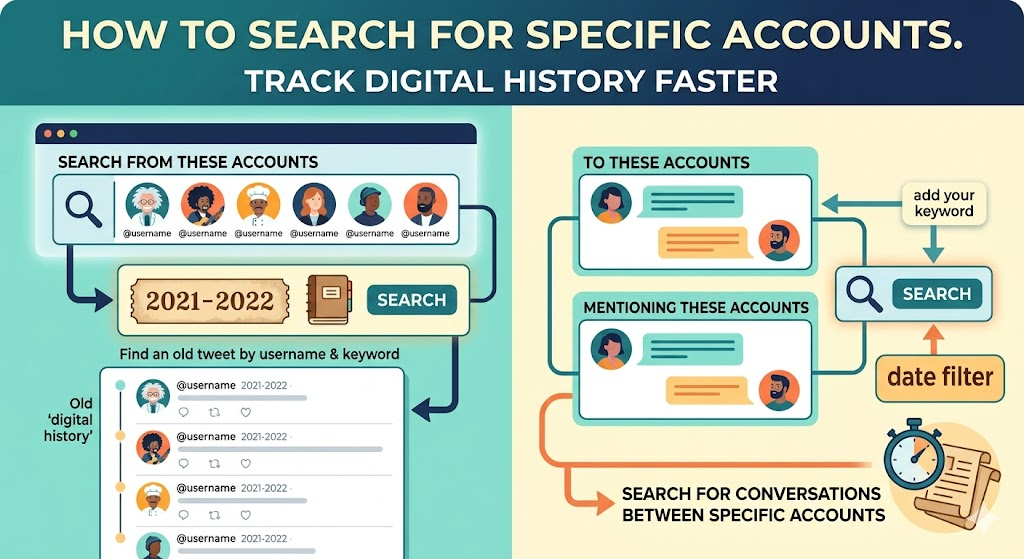
Do you want to see what a celebrity said about a topic three years ago? You can easily do this by filtering for specific accounts. The advanced twitter search tool allows you to look at “From these accounts” or “To these accounts.” This means you can see every time two people talked to each other or every time a specific brand mentioned a keyword.
This is a great trick for journalists or researchers. Instead of scrolling through a profile for hours, you just put their username in the box and add your keyword. It works perfectly for finding old advice or seeing how someone’s opinion has changed over time. It makes tracking digital history much faster and more accurate.
Mastering the Date Filter for Old Tweets
The most powerful part of advanced twitter search is the ability to travel back in time. You can set a “From” date and a “To” date. This is perfect if you want to know what the world was saying during a specific event, like a big sports game or a movie release in 2015.
I remember using this to find my own very first tweets from a decade ago. It was like looking at a time capsule! Without these date filters, those old posts would be buried under billions of new messages. If you are looking for historical data or just a bit of nostalgia, the date range tool is the most important feature you will ever use.
Filtering by Engagement: Finding Viral Hits
Sometimes you only want to see the “best” tweets. You can tell the advanced twitter search to only show posts that have a minimum number of likes, retweets, or replies. For example, if you set the “Minimum Likes” to 5,000, you will only see the viral hits related to your topic.
This is a huge help for content creators who want to see what kind of posts are performing well. It helps you understand what people find funny, helpful, or interesting. By filtering out the low-engagement posts, you get straight to the high-quality content that people are actually talking about across the globe.
Using the “Exclude” Feature to Stay Focused
If you are searching for “Apple” but keep getting results about the fruit instead of the tech company, you have a problem. The advanced twitter search has a section called “None of these words.” You can type “fruit” or “recipe” in that box, and the search engine will hide any tweet that mentions those things.
This keeps your results relevant to what you actually want. It is a smart way to filter out spam or topics that share the same name as your search. Whenever I do research on tech brands, I use this to remove unrelated chatter. It ensures that every result on my screen is actually useful for my project.
Finding Local Conversations with Location Tools
Did you know you can find what people are saying in your own neighborhood? While it is a bit more technical, advanced twitter search can help you find tweets near a specific location. This is amazing for finding local news, checking traffic, or seeing if a local store has a long line.
Businesses use this to see what customers in their city are saying. It helps them connect with people nearby. If there is a big event happening in your city, you can use location filters to see photos and updates from people who are actually there. It adds a local touch to a global platform.
Searching for Positive or Negative Sentiments
One of the coolest “hidden” features is the ability to filter by mood. You can search for a topic and add a checkbox for “Question” or “Negative.” If a company wants to find unhappy customers to help them, they use the negative filter in advanced twitter search to find complaints quickly.
If you are looking for advice, searching with the “Question” filter is a great way to see what people are curious about. It helps you find real human conversations instead of just ads or bot accounts. It makes the internet feel a lot more like a community where people are actually talking to one another.
The Secret Power of Hashtag Searching
While everyone knows how to click a hashtag, using the advanced twitter search version is much better. You can search for multiple hashtags at once or see how a hashtag was used during a specific week. This is much more powerful than just clicking a trending topic on the sidebar.
Using hashtags correctly helps you join the right communities. Whether it is a professional group or a hobby group, you can find the exact sub-culture you are looking for. I always recommend combining hashtags with date filters to see how a movement or a trend started and grew over time.
How to Save Your Advanced Searches
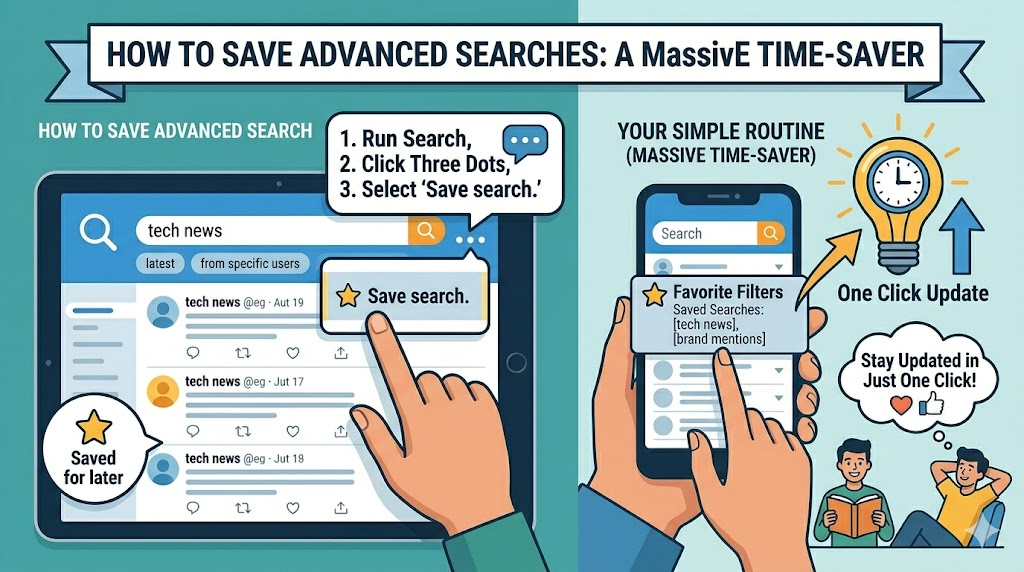
If you find yourself searching for the same things every day, you don’t have to keep typing them in. After you run an advanced twitter search, you can save it. On your search results page, click the three dots and select “Save search.” Now, whenever you click the search bar, your favorite filters will be right there waiting for you.
This is a massive time-saver for busy people. I have saved searches for my favorite tech news and my own brand mentions. It allows me to stay updated in just one click. It turns a complex tool into a simple routine that keeps you informed without any extra effort.
Frequently Asked Questions
1. Is advanced twitter search free to use?
Yes! This tool is completely free for everyone. You do not need a paid subscription to access the filters. It is available to any user who wants to find more specific information on the platform.
2. Can I use this on the mobile app?
The full menu is mostly for desktop browsers. However, you can use “search operators” (special codes) in the mobile app to get the same results. You can also open the desktop version of the site in your mobile browser.
3. Can I find tweets from private accounts?
No. Even with advanced twitter search, you can only see tweets from public accounts or accounts that have accepted your follow request. Privacy settings still protect users’ posts from being searched by strangers.
4. How far back can I search for tweets?
You can search all the way back to the very beginning of the platform in 2006! As long as the tweet hasn’t been deleted and the account is public, you can find it regardless of how old it is.
5. Why am I not seeing any results?
If you use too many filters at once, your search might become too narrow. Try removing one or two requirements, like the minimum likes or a specific city, to see more results.
6. Can I search for deleted tweets?
No, once a tweet is deleted by the user, it is removed from the search index. This tool only finds content that is currently live on the platform.
Conclusion
Mastering advanced twitter search changes how you use the internet. It turns a chaotic stream of information into an organized library. You can find old memories, track business rivals, or stay on top of breaking news with just a few clicks. It is all about using the right filters to save your valuable time.
Now that you know the secrets, go try it out! Set a date range, pick a specific account, and see what you can discover. You might be surprised by what has been hiding in plain sight. If you found this guide helpful, feel free to share it with a friend who struggles to find things online. Happy searching!